

Why These Three Components Matter
When a computer feels sluggish — applications take forever to open, tabs freeze, or the whole machine grinds to a halt under pressure — one of three core components is usually the culprit: the processor, RAM, or storage. Understanding what each one does, and how they depend on each other, is the first step toward diagnosing problems and making sense of any spec sheet.
If you're just getting started with computer fundamentals, our introduction to computers and the internet covers the broader basics. This article goes deeper into the hardware triangle that drives performance.
8 GB
Common RAM minimum for everyday computing
Industry guidance consistently places 8 GB as a practical baseline for general-purpose home and office computing tasks.
3–5×
Typical SSD speed advantage over HDD
SSDs commonly access data several times faster than traditional spinning hard drives, with sequential read speeds varying widely by model and generation.
~30%
Performance gain from RAM upgrade in low-memory systems
Studies on underpowered systems show that adding RAM to a machine running near its memory limit can meaningfully reduce lag and multitasking delays.
The Processor: Your Computer's Decision-Maker
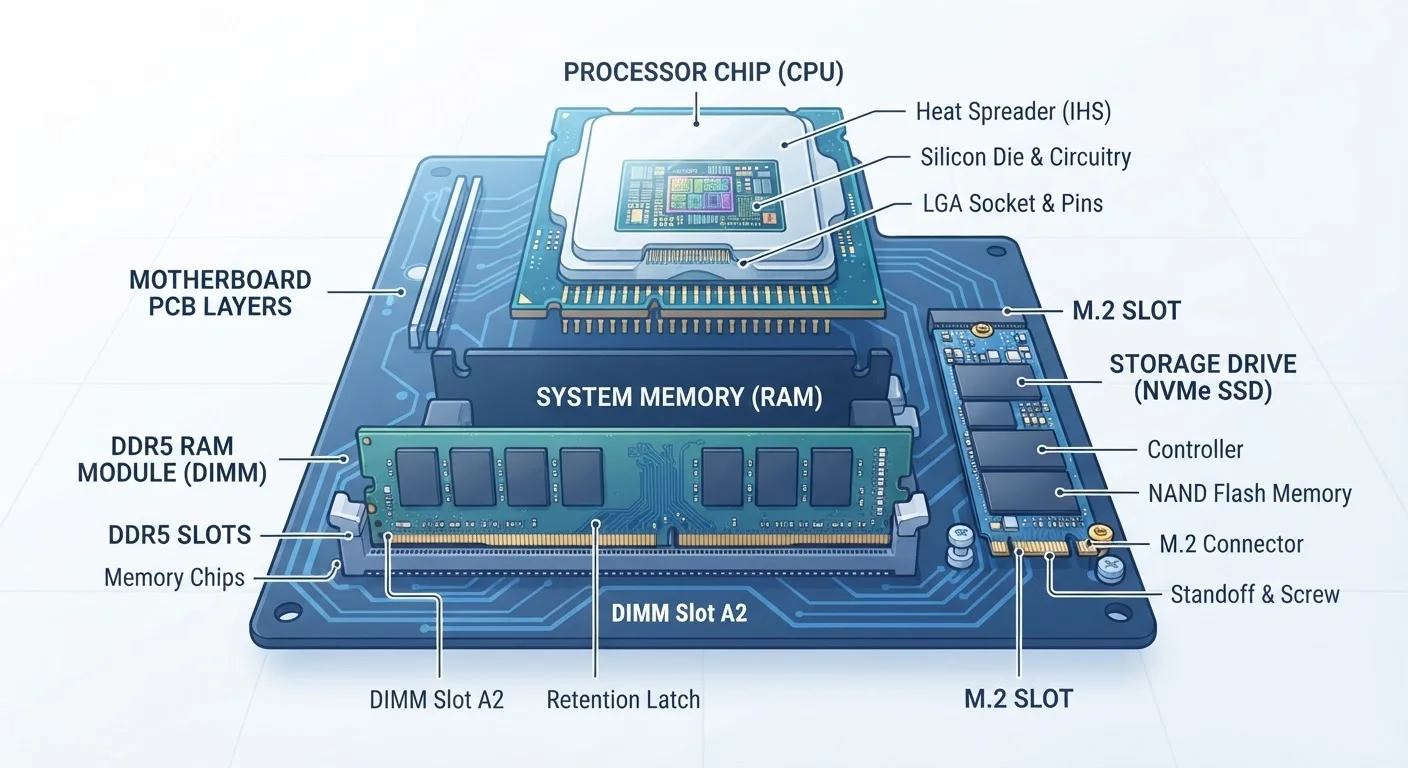
The processor, formally called the CPU (Central Processing Unit), is the component that actually executes instructions. Every calculation, every command you give the computer, every line of code a program runs — all of it flows through the CPU. A faster processor can handle more instructions per second, which translates directly to snappier, more responsive performance.
Clock speed, measured in gigahertz (GHz), is one indicator of processor capability, but modern CPUs also use multiple cores — essentially multiple processing units built into one chip. More cores allow the processor to handle several tasks simultaneously, which matters when you're juggling a video call, a browser with a dozen open tabs, and a document editor at the same time.
“Hardware specs only tell part of the story. What matters most to most users is balance — a computer where no single component is dramatically slower than the others.”
— A widely held principle in computer systems design, Foundational concept in PC hardware engineering
RAM: The Workspace Your Programs Share
RAM (Random Access Memory) is temporary memory — fast, immediately accessible space the computer uses to hold information that's actively in use. When you open a program, your computer loads it from storage into RAM so the processor can work with it quickly. When you shut the computer off, everything in RAM disappears.
A computer with too little RAM must frequently swap data back and forth between RAM and the much slower storage drive — a process sometimes called paging or thrashing. This is a common reason computers feel slow when too many applications are open at once.
RAM capacity is measured in gigabytes (GB). The right amount depends on how you use your computer, but it's a component where more headroom generally reduces frustration.
Check Your RAM Usage Before Upgrading
On Windows, open Task Manager (Ctrl + Shift + Esc) and look at the Performance tab to see how much RAM is actively being used. On a Mac, Activity Monitor shows the same information under the Memory tab. If your RAM is consistently near 100% during normal use, adding more may help. If there's plenty of headroom, RAM isn't your bottleneck.
Storage: Where Everything Lives Permanently
Storage is where your operating system, applications, photos, documents, and everything else are kept — even when the power is off. There are two main types: traditional HDDs (hard disk drives), which use spinning magnetic platters, and SSDs (solid state drives), which store data on flash memory chips with no moving parts.
SSDs access data dramatically faster than HDDs, which is why upgrading from an HDD to an SSD is often one of the most impactful changes you can make to an older computer. Startup times, application load times, and general responsiveness all tend to improve significantly.
Storage capacity is also measured in gigabytes (GB) or terabytes (TB). Unlike RAM, running low on storage doesn't always slow your computer immediately — but an overfull drive can affect performance, particularly on systems that use storage as overflow memory. For tips on keeping storage healthy, see our guide on keeping a home computer running smoothly.
How the Three Work Together
Think of the processor as a chef, RAM as the kitchen counter, and storage as the pantry. The chef can only work as fast as the counter allows — if there's no room to spread out ingredients, work slows down. And if the pantry is buried down a long hallway (slow storage), fetching items takes extra time regardless of how skilled the chef is.
This interdependence means that upgrading just one component has limits. A powerful processor paired with too little RAM will bottleneck on memory. Fast RAM won't compensate for a sluggish storage drive if the system constantly needs to pull data from it. Everyday performance reflects the weakest link in the chain, not just the strongest part.
This same principle applies to smartphones — if you're curious how it translates to mobile devices, see our explanation of smartphone RAM and processors in plain English.
Not All Upgrades Are Possible on Every Device
Many modern laptops and some desktops have RAM or storage that is soldered directly to the motherboard, meaning it cannot be replaced or expanded after purchase. If you're considering an upgrade, check your specific model's documentation or a manufacturer's support page before purchasing parts. Desktop towers are generally more upgradable than thin laptops or all-in-one systems.
Frequently Asked Questions
RAM (Random Access Memory) is temporary working space your computer uses while it's running programs. Storage — such as a hard drive or SSD — is where your files, photos, and applications are permanently saved, even when the computer is off. Think of RAM as your desk surface and storage as your filing cabinet.
It can help if RAM is the actual bottleneck. If your computer struggles when too many programs are open at once, more RAM often helps. However, if a slow processor or aging storage drive is the cause, adding RAM alone may not make a noticeable difference.
The processor (CPU) is the component that executes instructions — calculations, logical operations, and tasks that make software run. Every action you take on a computer, from loading a webpage to editing a photo, passes through the processor.
For general everyday tasks like web browsing, email, and word processing, 8 GB of RAM is commonly considered a practical minimum. More RAM becomes relevant for heavier workloads like video editing, gaming, or running many applications simultaneously.
SSDs (Solid State Drives) access data significantly faster than traditional spinning hard drives (HDDs), which can make a noticeable difference in startup times and how quickly applications load. HDDs typically offer more storage space per dollar but are slower and more physically fragile.
Yes. If RAM is insufficient, the processor must wait while data is shuffled in and out of slower storage. Similarly, a very slow storage drive can create delays even with a capable processor and ample RAM. All three components need to work in balance.
The content on this site is for informational purposes only and is not a substitute for professional advice. Always consult a qualified professional for guidance specific to your situation.