

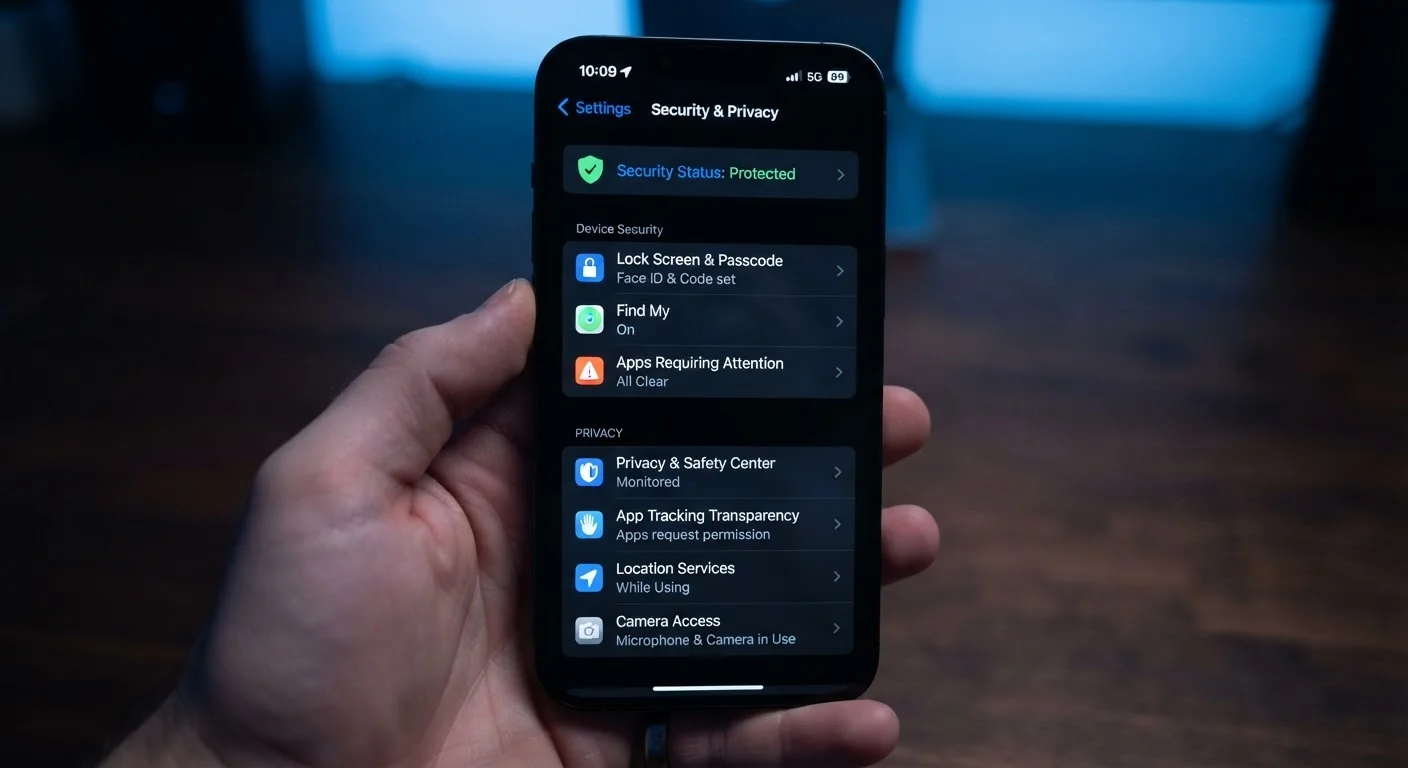
The Settings Menu Most People Never Open
Most smartphone owners spend time customizing their wallpaper, ringtone, and display brightness — but rarely venture into the security and privacy sections of their settings. That's a meaningful gap. Those menus contain controls that directly affect how much of your data is exposed, who can access your device, and how apps track your behavior over time.
The settings covered below aren't obscure developer options. They're standard features available on both Android and iOS devices, designed for everyday users. Reviewing them takes less than 30 minutes and can substantially reduce your everyday exposure to common privacy and security risks. If you're setting up a new device, our guide to first steps on a new smartphone covers foundational setup alongside these deeper controls.
App-by-app permission review
When you install an app, you often grant permissions quickly to get it running. Those permissions don't expire — a flashlight app you approved two years ago may still have access to your microphone today. Both Android and iOS allow you to review and revoke individual permissions at any time by navigating to Settings > Privacy (iOS) or Settings > Apps (Android).
Look specifically for apps with access to your camera, microphone, contacts, or location that don't obviously need those functions to work. Revoking unnecessary access doesn't delete the app or your data within it — it simply stops future collection. For a detailed breakdown of what each permission actually means, see our guide to app permissions.
Permissions granted at install don't expire — review them periodically and revoke what's unnecessary.
Lock screen notification previews
By default, many phones display the full content of incoming messages, emails, and alerts on the lock screen — visible to anyone who glances at your phone without unlocking it. This means banking alerts, two-factor authentication codes, and personal messages can all be read without any authentication.
On iOS, go to Settings > Notifications > Show Previews and set it to "When Unlocked" or "Never." On Android, the path varies by manufacturer but is typically found under Settings > Notifications > Lock Screen. Keeping previews hidden until authentication means sensitive content stays private even if your phone is left unattended.
Full message previews on a locked screen let anyone read your sensitive notifications without unlocking.
Two-factor authentication on your Apple ID or Google account
Your phone is closely tied to either your Apple ID or Google account, both of which hold contacts, photos, payment methods, and app purchase history. If that account is compromised, so is a great deal of your personal data. Two-factor authentication (2FA) — which requires a second verification step beyond your password — is one of the most effective defenses against unauthorized account access.
Despite this, many users have never enabled it. On iPhone, go to Settings > [Your Name] > Password & Security. On Android, visit your Google Account settings and look under Security. For context on why passwords alone are insufficient, our piece on common password vulnerabilities explains the core weaknesses.
Two-factor authentication is one of the most effective barriers against account takeover, yet many skip it.
Precise vs. approximate location access
Many apps request your exact GPS coordinates when approximate location — within a few miles — would serve the same purpose. A weather app doesn't need to know your precise address; a restaurant finder doesn't need real-time GPS tracking when you're browsing at home. Both iOS (version 14 and later) and recent Android versions allow you to grant only approximate location to apps rather than precise coordinates.
In iOS, go to Settings > Privacy & Security > Location Services, tap any app, and toggle off "Precise Location." On Android, the option appears when you tap an app under Location permissions. This limits how granular a data trail apps can build about your movements.
Granting approximate rather than precise location limits the movement data apps can build about you.
Advertising ID and cross-app tracking
Both iOS and Android assign your device an advertising identifier — a unique code that allows advertisers to track your behavior across different apps and websites and build a profile of your interests. You can reset this ID at any time or, on iOS, opt out of apps requesting to track you across other companies' apps entirely.
On iOS, Settings > Privacy & Security > Tracking lets you disable the "Allow Apps to Request to Track" toggle. On Android, look under Settings > Privacy > Ads to reset or delete your advertising ID. This doesn't make you invisible to advertisers, but it disrupts the continuity of the behavioral profile they maintain.
Resetting or disabling your advertising ID disrupts the cross-app behavioral profile advertisers accumulate over time.
Auto-lock and strong passcode settings
Many people set their auto-lock timer to several minutes — or disable it — for convenience. But a phone that stays unlocked for five minutes after you set it down is accessible to anyone in that window. Setting auto-lock to 30 seconds or one minute significantly reduces that exposure, especially in public or shared spaces.
Equally important is the passcode itself. A four-digit PIN has only 10,000 possible combinations; a six-digit PIN has 1,000,000. A custom alphanumeric passcode is stronger still. On iOS, Settings > Face ID & Passcode > Change Passcode > Passcode Options lets you upgrade. On Android, look under Settings > Security > Screen Lock.
Shortening your auto-lock timer and upgrading to a longer passcode are simple steps with real security impact.
Small Changes, Meaningful Difference
None of these settings require technical expertise, and adjusting them doesn't break your phone's functionality. Think of them as housekeeping — clearing away access and exposure that accumulated quietly in the background. For a broader view of how your devices collect and share information, see our piece on what data your connected devices collect and where it goes.
Make It a Quarterly Habit
Security settings aren't a one-time task. Apps update, permissions change, and new settings appear with operating system upgrades. Setting a reminder to review your privacy and security settings every three months keeps you ahead of changes. Pair it with checking for OS updates — our overview of smartphone OS updates explains why staying current matters for security.
Your phone's security posture is also only as strong as the network it connects to. If you regularly use public Wi-Fi, it's worth understanding why open networks carry real risks before assuming your phone's settings alone are sufficient protection.
The content on this site is for informational purposes only and is not a substitute for professional advice. Always consult a qualified professional for guidance specific to your situation.