

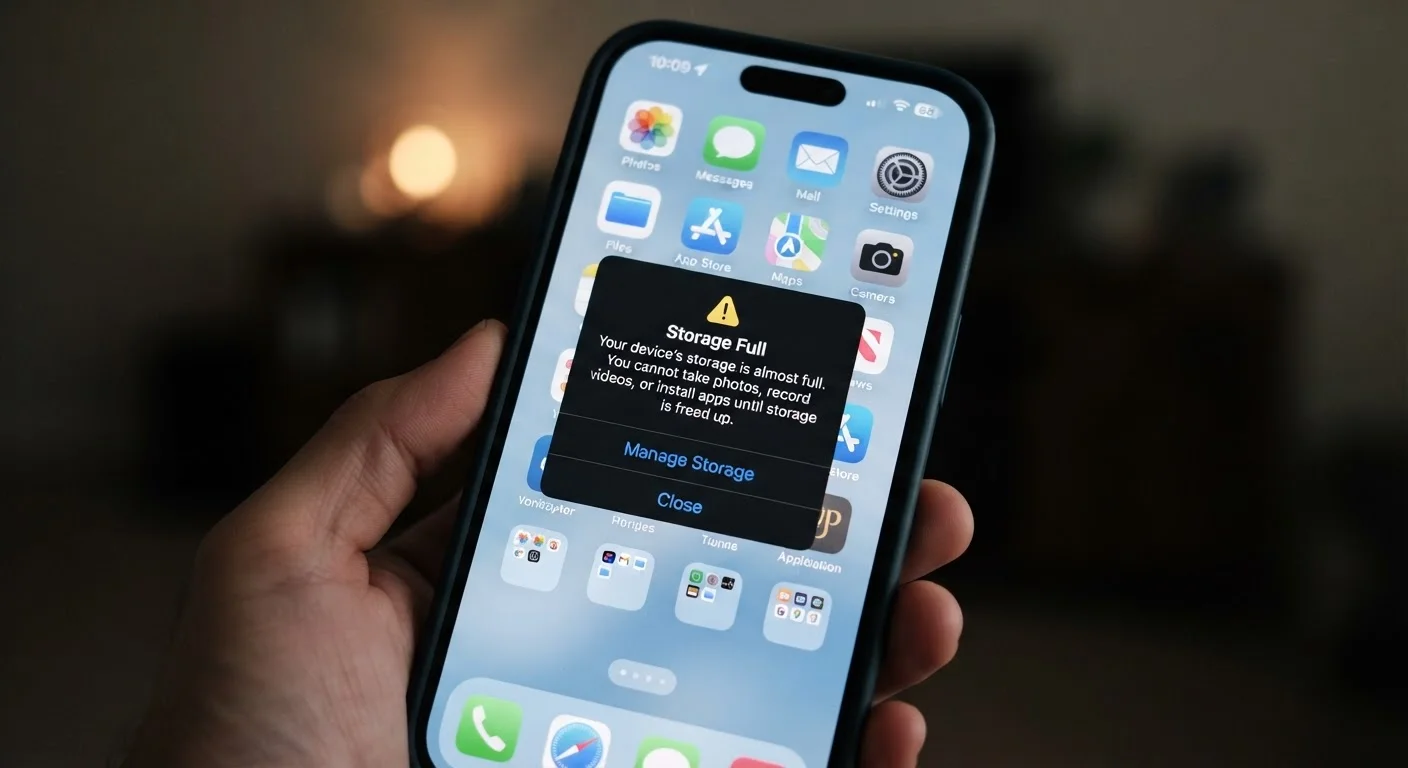
What the Warning Actually Means
When your phone displays a "Storage Full" alert, it's telling you that the internal flash storage — the permanent memory where all your data lives — has been filled to a point where normal operations are at risk. This is different from RAM, which handles what's currently running on screen. Storage is the long-term home for your apps, your photos, your downloaded content, and the operating system itself.
Here's the part most people don't realize: you never had access to the full advertised capacity in the first place. A phone sold as "128 GB" might show only 110–115 GB available out of the box, because the operating system, pre-loaded apps, and system files already occupy the rest. That gap is built in — it's not a defect or a trick, just a reality of how devices are manufactured and shipped.
Advertised vs. Available Storage
Storage capacity is measured in gigabytes (GB), but manufacturers calculate it using a slightly different standard than the one your operating system uses — leading to a small additional discrepancy beyond what the OS itself consumes. This is why a "128 GB" phone may show approximately 119 GB as the total in Settings, and less still as actually available. Neither figure is inaccurate; they use different measurement conventions.
What's Actually Eating Your Space
Understanding where storage goes is more useful than staring at a progress bar. Storage consumption generally falls into a few categories:
- Media files: Videos are the largest single category by far. A one-minute 4K video can easily consume 400 MB or more. Photos add up quickly too, especially if your camera shoots in high-resolution or RAW formats.
- App data: This is separate from the app itself. A navigation app might be 80 MB installed, but its offline maps could be several gigabytes. A messaging app stores every photo, video, and voice note ever received in a conversation — often without the user realizing it.
- Cache files: Apps create temporary files to load faster on repeat visits. Streaming services, browsers, and social apps can accumulate hundreds of megabytes of cached content that sits unused.
- System and update files: OS updates sometimes leave behind temporary installation files. Older software packages that have been superseded don't always clean themselves up automatically.
Knowing which category is responsible for your storage crunch helps you address the right thing. Most phones — both iOS and Android — include a storage breakdown screen in Settings that shows exactly where space is going.
~10–15 GB
Typical OS footprint on a new smartphone
Operating system files, pre-installed apps, and system resources commonly consume this range before a user installs anything, reducing usable capacity from the advertised figure.
400+ MB
Size of one minute of 4K video
Video file sizes vary by codec and settings, but 4K footage at standard frame rates regularly exceeds this figure, making video the fastest category to fill available storage.
10–15%
Recommended free storage buffer
Device performance guidelines generally suggest keeping at least this proportion of total storage free so the operating system has room to handle temporary files and updates.
Why a Full Drive Affects More Than Just Saving Files
A storage shortage isn't just an inconvenience for new downloads — it actively impacts how your phone performs. Operating systems need free space to write temporary files during normal operation, process photos after you take them, and install security patches. When that headroom disappears, the system slows down, apps crash more frequently, and updates fail to install.
This connection between storage and performance is often overlooked. Many users assume their phone is simply aging when, in fact, a nearly-full drive is the actual cause of the sluggishness. That's worth knowing because storage can be managed; hardware aging generally cannot be reversed. For more on how storage connects to broader slowdowns, see why your phone slows down over time.
Check Your Storage Breakdown First
Before deleting anything, go to your phone's Settings and look for the Storage section. Both Android and iOS provide a visual breakdown of what's consuming space — by category and by app. This takes less than a minute and tells you exactly where to focus, rather than randomly deleting files that may not make a meaningful difference.
Thinking About Storage Long-Term
Managing storage isn't a one-time fix — it's an ongoing habit, similar to other forms of device care. A few approaches help keep things in check without constant manual effort:
- Back up and offload media regularly. Moving photos and videos to a computer or cloud service frees up the largest category of space without deleting anything permanently. Cloud storage vs. local storage covers the trade-offs worth understanding before you choose a backup approach.
- Review app data periodically. Check which apps are consuming the most storage data — not just the app size itself. Settings menus on both Android and iOS show this breakdown per app.
- Clear cache selectively. This won't delete your personal content, but it recovers space that apps have quietly accumulated over time.
- Keep software updated. System updates sometimes include storage optimizations and better automatic cleanup routines. OS updates affect more than just features.
For a broader look at keeping your device in good shape, smartphone maintenance habits that actually hold up offer practical ongoing guidance beyond just storage.
Frequently Asked Questions
App data, cached files, and system updates accumulate passively without any action on your part. Messaging apps store every photo and video sent to you, and apps like maps and streaming services cache large amounts of content locally. This background accumulation is often far larger than any apps you've consciously downloaded.
Yes. When storage nears capacity, the operating system struggles to write temporary files it needs to function, which directly degrades performance. Many users notice lag, app crashes, or slow load times as a symptom before they even see a storage warning. See <a href="/tech-gadgets/smartphones-tablets/why-your-phone-slows-down-over-time-and-what-you-can-do-about-it">why your phone slows down over time</a> for a fuller explanation.
Videos are typically the single largest category, followed by photos. After media, app data — particularly from social, messaging, and navigation apps — is usually the next biggest consumer. The operating system itself also occupies several gigabytes that you can't reclaim.
Clearing cached data is generally safe and won't delete your personal files or account data. The app will simply rebuild its cache the next time you use it, which may cause it to load slightly slower initially. It's a reasonable maintenance step, not a risky one.
Some Android phones support expandable storage via a microSD card slot, which can meaningfully increase available space. Most iPhones and many newer Android models do not include this option. Moving files to cloud storage or an external drive are the practical alternatives in those cases.
A commonly cited guideline is to keep at least 10–15% of your total storage free at all times. This gives the operating system room to write temporary files, install updates, and function efficiently. Exactly how much matters varies by device and OS, but running consistently at or near 100% capacity is worth addressing.
The content on this site is for informational purposes only and is not a substitute for professional advice. Always consult a qualified professional for guidance specific to your situation.