

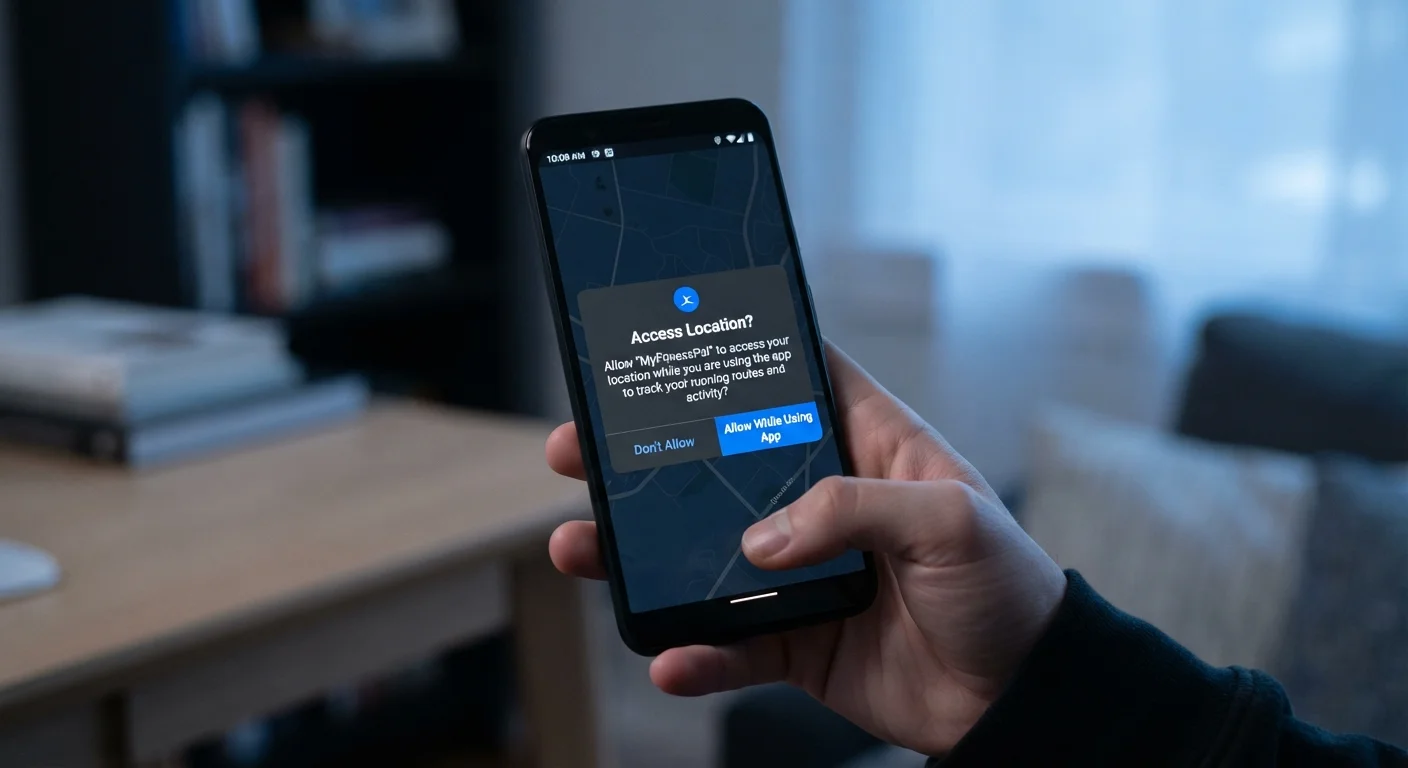
What Each Common Permission Actually Does
When an app asks for permission, it's requesting one of a defined set of system capabilities. Understanding what each one unlocks helps you decide whether the request makes sense.
- Location: Accesses your device's GPS, Wi-Fi positioning, or cell-tower data to determine where you are. Options typically range from precise to approximate location, and from always-on to only while the app is open.
- Camera: Allows the app to activate your phone's camera and capture photos or video. Any app that can take pictures can, in principle, record what the lens sees while it's active.
- Microphone: Enables audio recording through the device's microphone. This is essential for voice calls and dictation tools but should raise questions in apps with no audio function.
- Contacts: Reads the names, phone numbers, and email addresses stored in your address book. Granting this access shares not just your information, but that of every person in your contact list.
- Storage / Photos: Permits the app to read or write files, images, or documents on your device. Many apps request broad storage access when they only need access to a single file type.
- Notifications: Allows the app to send alerts to your lock screen and notification center. This is low-risk in terms of data but can affect how you experience your phone.
- Bluetooth: Connects to nearby Bluetooth devices. Increasingly, apps use Bluetooth signals for location tracking even without GPS access.
Start With Location — It Has the Most Impact
Location is the permission with the broadest real-world implications for your privacy. When an app asks for location access, choose 'While Using the App' as your default rather than 'Always.' Reserve 'Always' only for apps where continuous background tracking is genuinely necessary, such as navigation or fitness tracking apps you've consciously chosen for that purpose.
How to Evaluate Whether a Permission Makes Sense
The most practical question to ask is: does this app need this access to do what it's supposed to do? A navigation app needs location. A QR-code scanner needs the camera. A weather app might reasonably need location — but it doesn't need your contacts or microphone.
When a permission doesn't obviously connect to an app's core function, that's worth pausing on. It doesn't automatically mean something harmful is happening, but it does mean you should consider what that data might be used for. Many apps monetize user data through advertising networks, meaning your location or usage patterns may be shared with third parties even if the app itself is free.
Permissions Vary by Platform and App Version
The exact permission categories and options available to you depend on your operating system version and the app itself. Older Android versions offer less granular controls than newer ones. Similarly, an app update can introduce new permission requests even after you've already installed it — so it's worth reviewing permissions again after a significant app update.
For a broader look at how connected devices collect and use data beyond your phone, see our article on smart home privacy and data collection.
45%
Apps requesting location access on Android
Research from app analytics studies has found that a significant share of Android apps request location access, even when location isn't central to their function.
3 in 5
Smartphone users who never review app permissions
Surveys on mobile privacy behavior consistently find that the majority of users grant permissions at install time and rarely return to audit or revoke them.
Managing Permissions Proactively
Both Android and iOS make it straightforward to audit what you've already granted. On iOS, go to Settings > Privacy & Security to see a permission-by-permission breakdown of which apps have access to what. On Android, find a similar view under Settings > Privacy > Permission Manager, though the exact path varies by manufacturer.
A periodic review — especially after installing new apps — is a habit worth building. Look for apps you rarely use that still hold broad permissions. Many Android users don't realize that unused apps can have permissions auto-reset after a period of inactivity on newer Android versions, which is a useful safety net but not a substitute for conscious management.
If you're interested in going deeper on privacy and security controls on your phone, our guide to phone security settings most people overlook covers additional controls worth knowing about. And if you're comparing how Android and iOS handle privacy more broadly, the Android vs. iOS comparison article walks through key platform-level differences.
“Users who actively manage app permissions are exercising one of the most direct forms of control over their personal data that the current mobile ecosystem offers. Most people don't realize how much visibility they actually have.”
— Electronic Frontier Foundation, Digital rights and privacy advocacy organization
Frequently Asked Questions
Yes. On both Android and iOS, you can review and change permissions for any installed app through your device's Settings menu, usually under Privacy or Apps. Revoking a permission takes effect immediately and the app loses access until you grant it again.
Usually only partially, if at all. Denying location access to a recipe app won't affect it — that permission isn't essential to its function. However, denying microphone access to a voice-calling app would disable calling. Most apps continue to work for their primary purpose even when optional permissions are denied.
'Allow Once' grants access only during the current session, after which the app must ask again. 'Allow While Using' grants access whenever the app is open on screen. Both are more privacy-protective than 'Always Allow,' which permits background access even when the app isn't actively in use.
It doesn't — and that's a warning sign. A flashlight's core function only requires control of the camera flash. Requests for unrelated permissions like microphone, contacts, or location suggest the app may be collecting data beyond what its function requires, which warrants extra scrutiny.
Yes, in meaningful ways. iOS has historically offered more granular controls, such as allowing approximate rather than precise location. Android has expanded its controls in recent versions, including permission auto-reset for apps you haven't used in a while. The fundamentals are similar, but the options differ by platform and OS version.
It depends on the app. Contact access is reasonable for a messaging or email app that needs to find people in your network. For a game or utility with no social component, granting contacts access hands over the personal information of everyone in your address book, which is rarely necessary.
The content on this site is for informational purposes only and is not a substitute for professional advice. Always consult a qualified professional for guidance specific to your situation.