

Start here
What Are Smartphones and Tablets, Really?
Next
The Parts Inside: A Plain-Language Tour
Then
How Apps, Wi-Fi, and Cellular Connections Work
When you're ready
Keeping Your Device Healthy and Secure
Go further
What to Explore Next
What Are Smartphones and Tablets, Really?
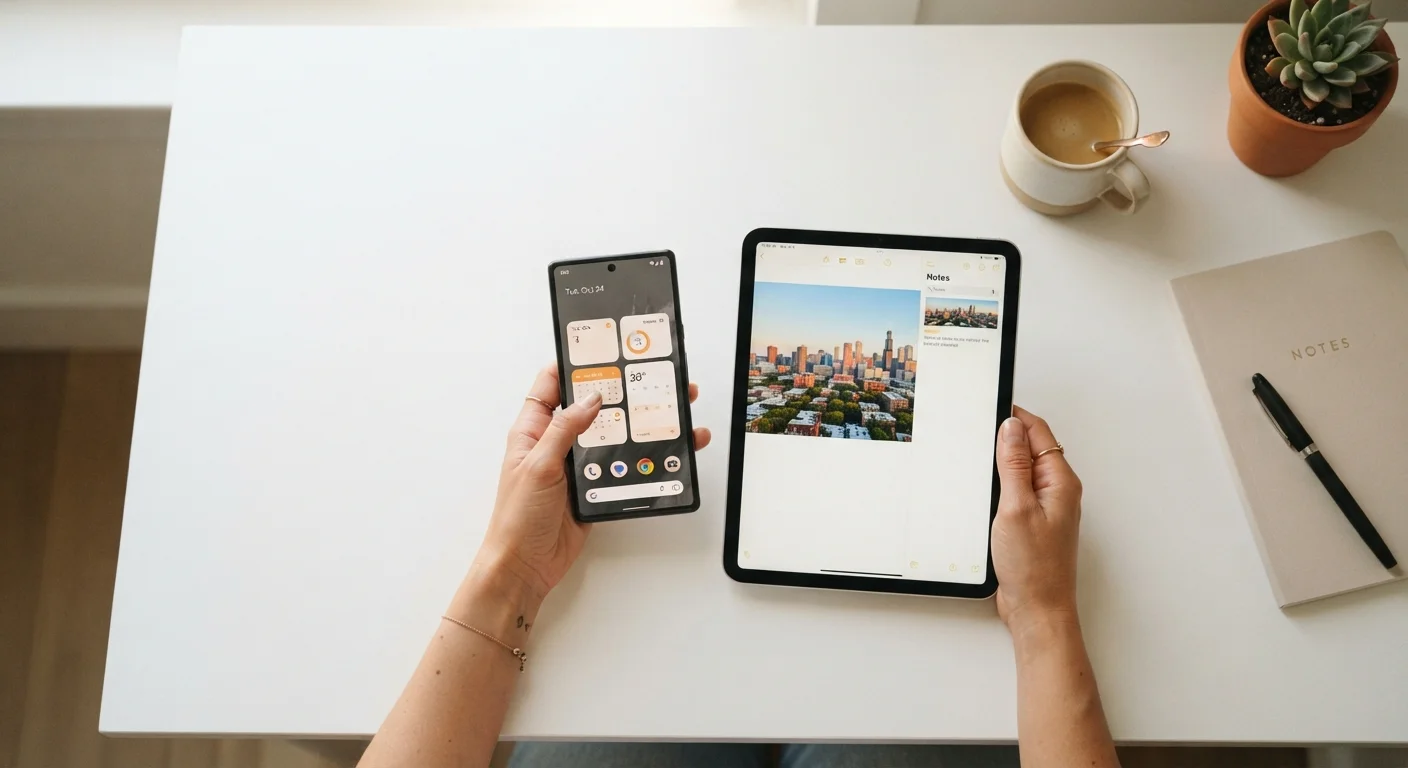
At their core, smartphones and tablets are small, portable computers — ones that happen to fit in your hand. They run programs, connect to the internet, take photos, and manage your calendar, all from a device you can hold with one hand. If you've ever wondered whether they're fundamentally different from a traditional computer, the honest answer is: not as much as they look.
The biggest distinction is the operating system (the software that runs everything). Mobile devices use either Android — developed by Google and used on many different manufacturers' phones — or iOS, which is made by Apple and runs exclusively on iPhones and iPads. Everything you do on your device happens through one of these two systems. For a broader introduction to how computers and the internet fit together, see our introduction to computers and the internet.
Operating System (OS)
The core software that manages everything on your device — running apps, handling Wi-Fi, and displaying the screen. On phones and tablets, the OS is either Android or iOS.
App
A program designed for a specific task, like navigation, messaging, or video streaming. Apps are downloaded from official stores and run on top of the operating system.
Storage
The permanent space on your device where photos, apps, and files are saved, measured in gigabytes (GB). When storage fills up, the device may slow down or refuse new downloads.
RAM
Short-term memory that lets your device handle multiple tasks at once. More RAM means smoother multitasking; it is separate from storage and does not hold your files.
Cellular Data
Internet access provided through a mobile network carrier, similar to how a phone call works. It uses your monthly data allowance and works wherever you have signal.
Software Update
A package released by the device maker or OS developer that fixes bugs, closes security gaps, and sometimes adds new features. Installing updates is one of the most effective ways to keep a device secure.
The Parts Inside: A Plain-Language Tour
You don't need to understand every chip to use a phone confidently, but knowing a few key components helps you make sense of specs and troubleshoot problems.
- Processor (CPU): The brain of the device. A faster processor handles more tasks at once without slowing down.
- RAM: Short-term memory. More RAM means the device can keep more apps running smoothly in the background.
- Storage: Where your photos, apps, and files live permanently. Common amounts range from 64 GB to 256 GB or more.
- Battery: Measured in milliamp-hours (mAh). A higher number generally means longer battery life, though software efficiency matters too.
- Display: The touchscreen is both your window and your keyboard. Screen resolution affects how sharp text and images look.
Tablets share all the same components — they simply have larger screens and, usually, bigger batteries to match.
Match Specs to Your Actual Needs
You don't need the highest-end processor or the most storage to have a great experience. Think about what you'll actually do most — browsing, video calls, streaming — and look for a device whose specs comfortably cover those tasks. Paying for capabilities you'll never use doesn't improve your day-to-day experience.
How Apps, Wi-Fi, and Cellular Connections Work
Most of what you do on a mobile device involves either an app or an internet connection — and usually both.
Apps are downloaded from official stores (the App Store for Apple, Google Play for Android). Each app is a self-contained program built for a specific purpose. Some work offline; most need a connection to be fully useful.
Your device can reach the internet in two ways:
- Wi-Fi: A wireless connection through a local router — at home, at a library, or at a café. Fast and free once you're connected, but limited to the range of that router.
- Cellular data: A connection through a mobile network (4G LTE or 5G). Works almost anywhere you have phone signal, but uses data from your monthly plan.
Tablets can be purchased as Wi-Fi-only or with cellular capability built in. Our guide on cellular vs. Wi-Fi-only tablets walks through how to decide which setup fits your life.
5G Is Faster, But Not Always Necessary
5G is the newest generation of cellular technology and offers faster speeds in areas where it's available. However, 4G LTE is still widely available and handles everyday tasks like streaming and browsing without difficulty. Coverage varies significantly by location, so check your carrier's coverage map before assuming 5G will be available where you live and work.
Keeping Your Device Healthy and Secure
Two habits will protect you more than anything else: keeping your software updated and using a strong screen lock. Updates patch security vulnerabilities — skipping them leaves known weaknesses open. A PIN, password, or biometric lock (fingerprint or face recognition) keeps your personal information safe if the device is lost or stolen.
Beyond those basics:
- Only download apps from official stores, and check what permissions an app requests before installing it.
- Back up your data regularly — either to the cloud or to a computer — so you don't lose photos and contacts if something goes wrong.
- Avoid charging your battery to 100% every single night if longevity matters to you; most manufacturers suggest keeping the battery between roughly 20% and 80% for long-term health.
When you get a new device, setting it up carefully from the start makes a real difference. Our first-steps guide for new smartphones covers the essential setup checklist in plain language.
Public Wi-Fi Carries Real Risks
Open Wi-Fi networks in cafés, airports, and hotels are convenient, but they are not private. Avoid accessing sensitive accounts — banking, medical portals, or anything requiring a password — while on public Wi-Fi unless you are using a trusted VPN (virtual private network). When in doubt, switching to your cellular connection is the safer choice.
What to Explore Next
Once you're comfortable with the basics, a natural next question is which type of device suits you — and which operating system fits your habits. Our guide on Android vs. iOS differences explains the practical tradeoffs without the marketing spin.
If you're weighing a tablet as a second device, what tablets can and can't replace gives an honest look at where they shine and where they fall short. And if you want to understand how mobile devices connect to the broader world of home technology, our home tech guides cover smart home gadgets and household electronics in the same plain-language style.
The goal is confidence — not perfection. Every feature you learn to use makes the device more useful to you, and there's no timeline you need to follow.
Android Accessibility Help Center
Google's official support site covers basic Android setup, accessibility features, and common troubleshooting steps — written for everyday users rather than technical specialists.
Apple Support: iPhone and iPad Basics
Apple's support pages include step-by-step walkthroughs for first-time setup, iCloud backup, and common settings adjustments on iOS devices.
Frequently Asked Questions
A smartphone fits in your pocket, makes phone calls, and typically has a screen between 5 and 7 inches. A tablet has a larger screen — usually 8 to 13 inches — and is designed more for browsing, reading, and media. Most tablets can connect to Wi-Fi, and some support cellular plans, but they are not primarily used for voice calls.
Not necessarily. A Wi-Fi-only tablet works fine at home, in coffee shops, and anywhere with a wireless network. A cellular tablet lets you get online when no Wi-Fi is available, but it requires a separate data plan. Whether that cost makes sense depends on how and where you plan to use the device.
Your device will usually notify you when an update is available. You can also check manually by going to your phone's Settings and looking for a section labeled 'Software Update' or 'System Update.' Installing updates promptly keeps your device secure and running smoothly.
An app (short for application) is a program designed to perform a specific task — like sending messages, checking weather, or streaming video. Apps are downloaded from official stores: the App Store on Apple devices and Google Play on Android devices. Both stores review apps before listing them, which reduces but does not eliminate risk.
For many everyday tasks — email, browsing, social media, video calls, and navigation — a smartphone works well. However, tasks like writing long documents, editing spreadsheets, or running specialized software are often easier on a laptop or desktop. Most people find smartphones complement rather than fully replace a computer.
Start by restarting the device, which clears temporary processes. Then check whether storage is nearly full — devices slow down when space runs low. Deleting unused apps or transferring photos to a computer or cloud service can help. If slowness persists, a software update or a factory reset (after backing up data) may resolve deeper issues.
The content on this site is for informational purposes only and is not a substitute for professional advice. Always consult a qualified professional for guidance specific to your situation.